Getting a new Windows PC should be exciting, but for many people it quickly turns stressful. Photos, documents, favorite, programs, and personal settings all live on your old computer, and the thought of starting over can feel overwhelming.
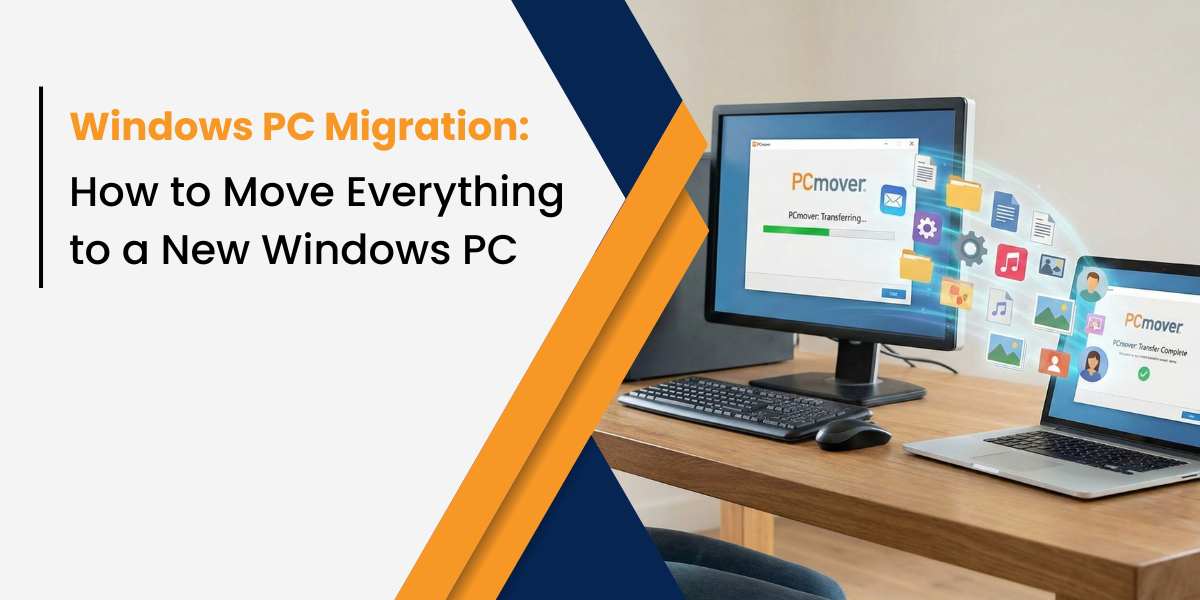
Windows PC migration lets you move everything from your old Windows PC to a new one without reinstalling apps or manually copying files. Using tools like Laplink PCmover, home users can transfer apps, files, and settings automatically so the new PC feels familiar right away.
What Is Windows PC Migration?
Windows PC migration is the process of transferring your files, applications, settings, and user profiles from one Windows computer to another.
Instead of copying folders by hand or reinstalling programs one by one, Windows PC migration helps move everything together. When done properly, your new PC looks and works just like your old one.
Windows PC migration typically includes:
- Documents, photos, videos, and downloads
- Installed applications
- Desktop layout, preferences, and system settings
Why Windows PC Migration Matters for Home Users
Most people don’t realize how much data and personalization they have on their PC until they buy a new one.
Without proper Windows PC migration, many users experience:
- Missing files or folders
- Programs that need to be reinstalled
- Lost settings and preferences
- Hours or days spent setting things up again
Using a trusted approach such as Laplink PCmover helps consumers:
- Move everything at once
- Avoid frustration
- Reduce the risk of losing important data
- Start using their new PC faster
When Should You Use Windows PC Migration software?
Windows PC migration is especially useful if:
- You just bought a new Windows PC
- Your old computer is slow or failing
- You are upgrading Windows
- You want your new PC to feel the same as your old one
In all these situations, Windows PC migration helps you avoid starting from scratch.
How to Move Everything to a New Windows PC Without Reinstalling Apps
Here is a simple, consumer-friendly way to move to a new Windows PC without losing anything.
Step 1: Prepare Both PCs
Turn on your old PC and your new Windows PC. Make sure both are connected to the internet or the same network.
Step 2: Install Laplink PCmover
Install Laplink PCmover on both computers and follow the guided setup instructions.
Step 3: Choose What You Want to Move
Select the programs, files, and settings you want to transfer. Most home users choose to move everything.
Step 4: Start the Transfer
Begin the transfer and let it run. You do not need to sit and watch the process.
Step 5: Sign In and Get Started
Once finished, log in to your new Windows PC. Your apps, files, and settings should be ready to use.
Windows PC Migration vs Manual File Transfer
Many people try to move to a new PC by copying files with a USB drive or external hard disk. This often leads to problems.
| Windows PC Migration |
Manual File Transfer |
| Moves files and apps |
Moves files only |
| Keeps settings |
Settings are lost |
| Saves time |
Takes much longer |
| Lower risk of mistakes |
Easy to miss files |
Manual transfer usually means reinstalling programs and reconfiguring settings afterward.
Moving to a New Windows PC with Different Windows Versions
A common question is whether Windows PC migration works when the old and new PCs use different versions of Windows.
With Laplink PCmover, you can move:
- From Windows 7 or Windows 8
- To Windows 10 or Windows 11
This makes upgrading to a newer Windows version much easier for home users.
Is Windows PC Migration Safe?
Yes. When done correctly, Windows PC migration is safe.
Laplink PCmover:
- Does not delete data from your old PC
- Does not overwrite files on your new PC
- Helps preserve your personal information
This gives peace of mind when moving photos, documents, and important files.
Common Mistakes to Avoid When Moving to a New Windows PC
Avoid these common mistakes:
- Copying files manually and forgetting important folders
- Reinstalling programs without saving settings
- Deleting data from the old PC too early
- Rushing the setup process
Using Windows PC migration tools like Laplink PCmover helps prevent these issues.
A Real-World Example
"Diane Perreault upgraded from an older Windows PC to a new Windows PC. Instead of reinstalling all her software and copying files manually, she used Laplink PCmover to move everything at once. Within a short time, her new PC was ready to use with her apps, files, and settings already in place." Check out our happy customers.
Final Thoughts: Make Your New Windows PC Feel Like Home
Moving to a new Windows PC does not have to mean starting over.
With Windows PC migration and tools like Laplink PCmover Software, you can:
- Move everything safely
- Save time
- Avoid stress
- Start using your new PC right away
👉 For a complete step-by-step overview, visit our PC Migration guide.



Add Comment